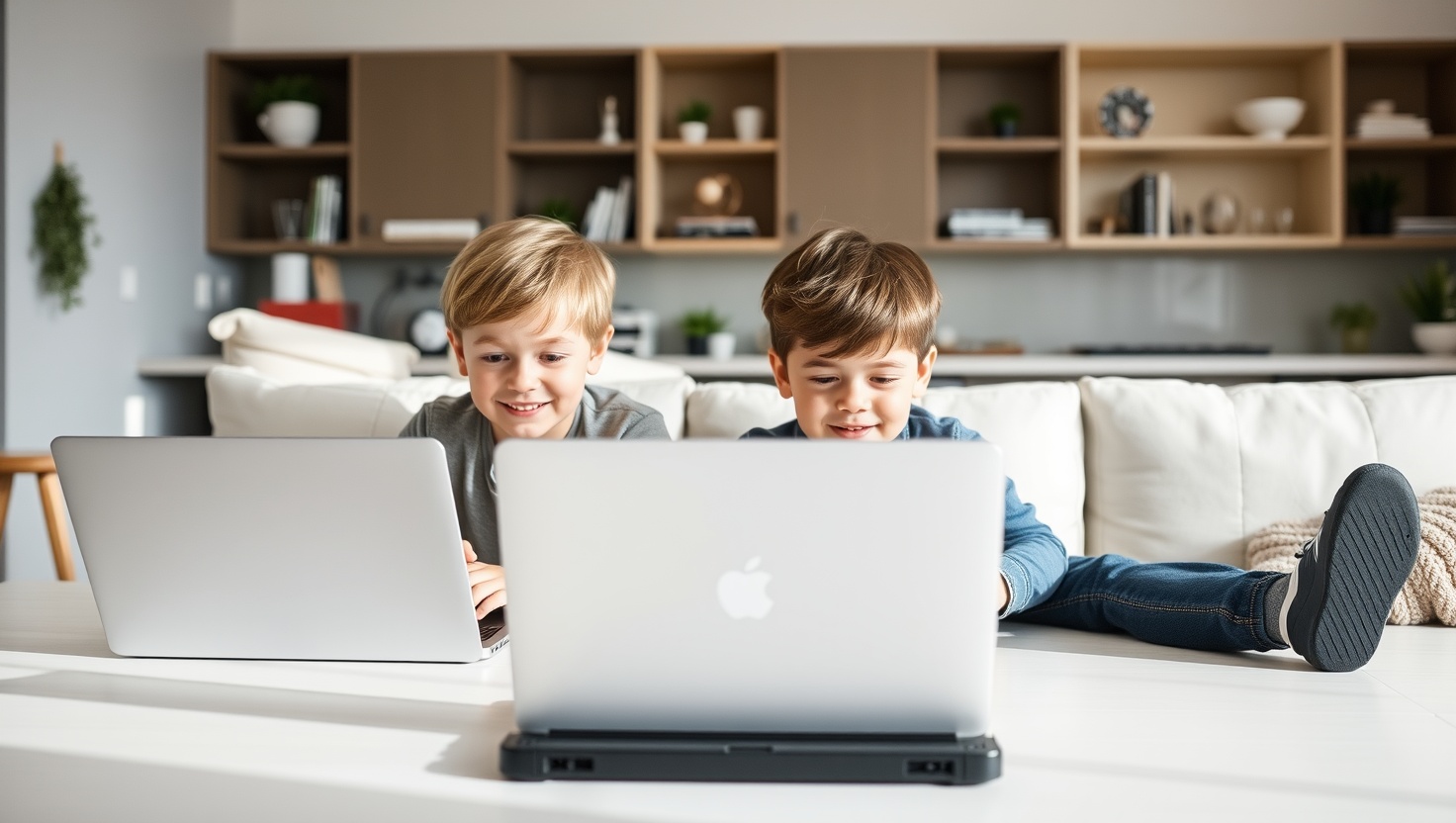
Parenting & Screen Time
Your kid needs a laptop for school. You know this. But handing a child an unrestricted internet device feels like giving them a car without brakes.
The good news: the right laptop comes with guardrails built in. Chromebooks lock down beautifully with Google Family Link. Windows machines integrate Microsoft Family Safety. And some devices are designed from the ground up for kid use — durable, filtered, and parent-managed. The key is choosing hardware that works with parental controls, not against them.
Here are the five best laptops for kids with parental controls in 2026, tested and ranked for real family life.
Most parents try to solve the screen-control problem with software — downloading a parental control app, setting up a router filter, adding a browser extension. These aren't bad ideas, but they're bolt-on solutions. A determined ten-year-old will find the workaround within a week.
Hardware and operating system matter enormously. A Chromebook running Chrome OS enforces parental controls at the kernel level through Google Family Link — your child can't bypass them by installing a different browser or switching accounts, because the entire device login is managed through their supervised Google account. Windows machines with Microsoft Family Safety aren't quite as airtight, but they're solid when properly configured and work especially well in households already using Microsoft 365.
The other factor parents underestimate is durability. A laptop bought for a nine-year-old will get dropped, backpacked roughly, used on the floor, and occasionally survive a water bottle incident. Consumer laptops built for adults aren't designed for this. Education-focused Chromebooks often meet MIL-STD 810H testing standards — the same spec the military uses for field equipment. That's not overkill for a middle schooler's backpack. It's exactly the right spec.
Finally, think about school compatibility before you buy. The overwhelming majority of US K-12 schools run on Google Workspace for Education. Chromebooks plug straight in — Google Classroom, Google Docs, and all the school tools work natively. Windows machines handle it too, mostly through the browser, but Chromebooks make the school IT department's life easier and yours as well.
The spec sheet on any laptop can be overwhelming. Here's what actually matters when the buyer is under 13:
An 11-inch screen is manageable for a younger child; 14 inches is better for teens doing schoolwork for hours. Anything smaller than 11 inches makes typing genuinely uncomfortable. Anything larger than 14 inches is heavy and awkward to carry. The sweet spot for most school-age kids is 13 to 14 inches.
A laptop that needs charging at lunch doesn't work for a full school day. Target at least 8 hours of real-world battery life — not manufacturer claims, which are typically measured under ideal conditions. The picks on this list all hit 10 hours or better in everyday use.
Kids type slower on cramped keyboards, get frustrated faster, and use the laptop less. Check that the keyboard has full-size keys with decent key travel. Detachable keyboards (like on the Lenovo Duet) are lightweight but less ideal for heavy typing assignments — worth knowing before you buy.
Look for rubberized bumpers, spill-resistant keyboards, and MIL-STD 810H certification if budget allows. A spill-resistant keyboard doesn't mean waterproof — it means a small liquid spill won't immediately fry the motherboard. That's a real distinction worth having when a child eats breakfast over the keyboard every morning.
Google Family Link (all Chromebooks) and Microsoft Family Safety (Windows) are the two main platforms. Both are free. Both work through an app on your phone. Family Link is widely considered more seamless for day-to-day management — you can lock the device remotely, approve app installs, set bedtime shutoff, and view weekly activity reports from your phone without touching the child's laptop.
Chromebooks store most data in Google Drive, so 32–64GB of local storage is fine for everyday school use. Windows machines need more — 128GB minimum, especially if your child will download apps or creative software. Don't buy a Windows laptop with 64GB for a child who uses Photoshop or any video editing tool.
If your child's school district issues Google Workspace accounts, any Chromebook on this list is plug-and-play compatible. Call your school's IT department if you're unsure — most will tell you within two minutes whether they're a Google or Microsoft shop.
| Laptop | Price | Screen | OS / Controls | Battery | Best For |
|---|---|---|---|---|---|
| Acer Chromebook Spin 314 Top Pick | $300 | 14" touch | Chrome OS / Family Link | 10 hrs | Ages 9–14, school |
| Lenovo Chromebook Duet 3 | $280 | 11" touch | Chrome OS / Family Link | 12 hrs | Ages 6–10, younger kids |
| HP Chromebook 14 | $250 | 14" FHD | Chrome OS / Family Link | 10 hrs | Budget full-size |
| ASUS Chromebook CR1 | $220 | 11.6" HD | Chrome OS / Family Link | 10 hrs | Rough-and-tumble kids |
| Microsoft Surface Go 4 | $450 | 10.5" touch | Windows 11 / Family Safety | ~9 hrs | Creative kids, Windows |
A 14-inch convertible Chromebook that handles everything from Google Classroom essays to YouTube breaks without flinching. The touchscreen flips all the way around to tablet mode — handy for younger kids who want to draw or watch videos flat. Google Family Link runs natively, the battery genuinely lasts a school day, and it's passed MIL-STD 810H durability testing. This is the default recommendation for most school-age kids.
Part laptop, part tablet. The Duet 3 detaches into a standalone 11-inch tablet — lightweight enough at 1.14 lbs that a six-year-old can hold it comfortably. Snap the keyboard cover back on and it's a proper laptop for typing assignments. The Snapdragon 7c Gen 2 handles Chrome OS smoothly, Family Link runs natively, and the battery outlasts any school day your kid will have. This is what you buy when your child isn't quite ready for a full laptop but has outgrown a tablet.
The HP Chromebook 14 hits the sweet spot between size and price. A full 14-inch full HD display makes it genuinely comfortable for schoolwork — not a compromised tiny screen to hit a lower price point. The Intel N200 processor handles Chrome OS without hesitation, 8GB RAM keeps multiple tabs open simultaneously, and the spill-resistant keyboard buys you some peace of mind at breakfast time. Family Link integration is native. Nothing flashy — just solid, reliable, and exactly what most kids need.
The ASUS CR1 is built for children who have a complicated relationship with keeping their belongings intact. It comes with a rubber bumper around the entire chassis, a keyboard rated to survive liquid spills, and MIL-STD 810H certification — tested against drops, vibration, humidity, temperature extremes, and dust. This is education hardware: designed in collaboration with schools, hardened for daily backpack survival, and priced low enough that a replacement doesn't require a conversation with your accountant. Google Family Link runs natively. At $220, it's the most affordable MIL-spec option on this list.
The only Windows machine on this list, and the most expensive. The Surface Go 4 runs full Windows 11 on a 10.5-inch PixelSense touchscreen — a high-resolution display that makes it genuinely pleasant for drawing, photo editing, and creative work. Microsoft Family Safety integrates directly into Windows and manages screen time, content filters, app purchases, and even spending limits across Xbox if your child games. The 128GB UFS storage means real Windows apps run without the constant storage pressure you'd hit on a 64GB device. The pen and keyboard cover are sold separately, which is an annoyance at this price, but the core device is excellent.
Buying the right laptop is step one. Setting it up properly is step two — and most parents skip this part or do half of it. Here's exactly what to do.
Go to families.google.com on your phone and create a child account. You'll need to verify your own Google account as the parent. The child account must be set up as supervised — don't just create a regular Gmail account and expect parental controls to work, because they won't.
On the Chromebook sign-in screen, use your child's supervised Google account. The device will recognize it as a supervised account automatically and connect to your Family Link parent controls. You only do this once.
Open the Google Family Link app (iOS or Android — both work). Set daily screen time limits, schedule automatic "bedtime" lockout, and turn on SafeSearch and restricted YouTube. You can also require your approval before any new app installs — useful for the first six months especially.
Enable the "Supervised sites" filter under Web Controls. This puts Chrome on your child's Chromebook into filtered mode — blocking adult content by default and letting you whitelist or blacklist specific sites. It's not perfect, but it stops 95% of what you don't want them finding by accident.
Under "Screen time" in Family Link, set a daily schedule. Pick when the device locks for bed. The Chromebook will display a locked screen and nothing your child does will get around it without your parent PIN. This is the feature parents love most — and forget to configure.
Practical tips for managing screen time and keeping your family connected offline.
Unsubscribe anytime. We respect your inbox.