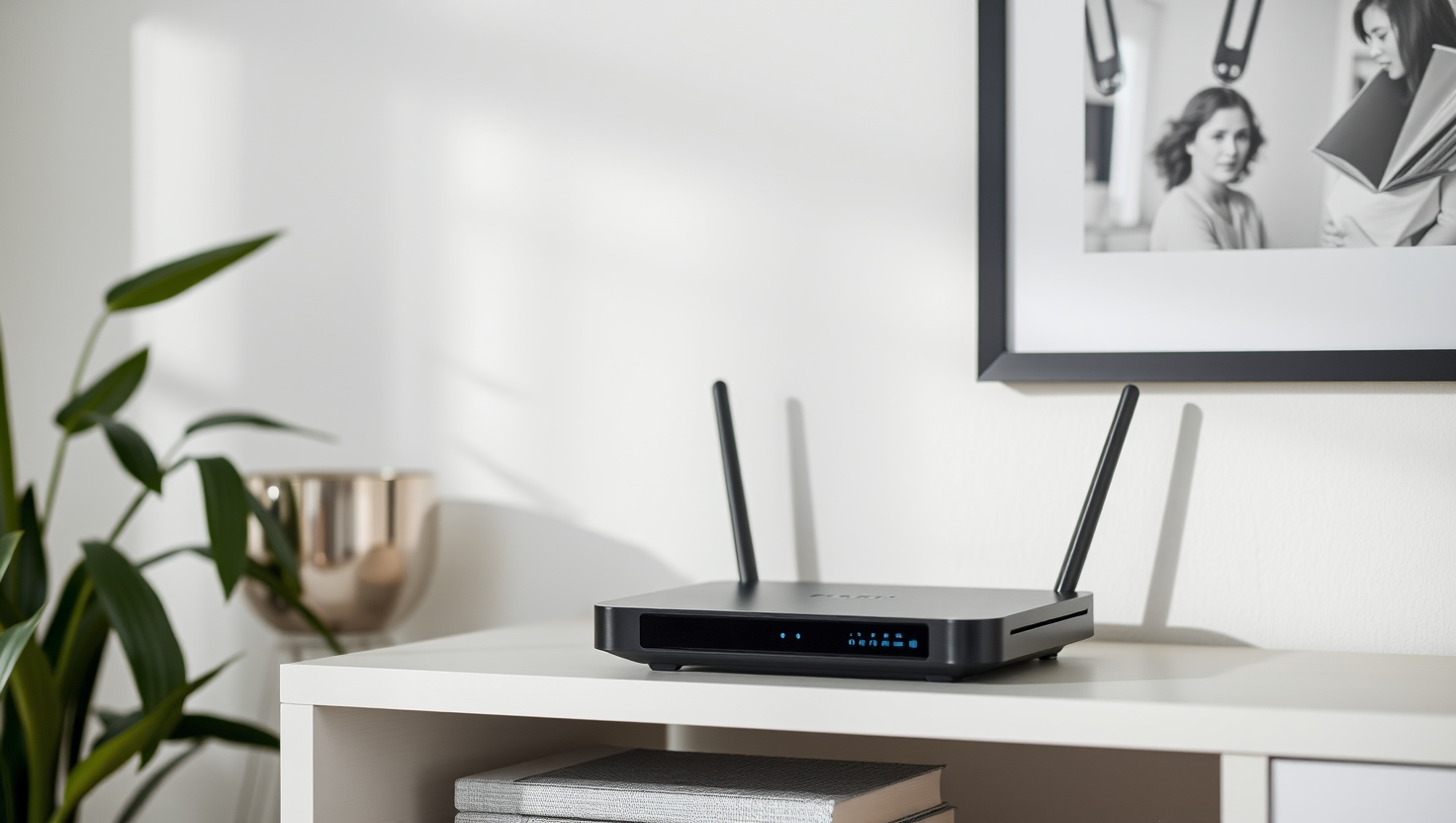
You installed a parental control app on your kid's phone. Good start. But here's the thing: your kid has access to a lot more than a phone. The gaming console. The smart TV. The tablet on the kitchen counter. The laptop they use for homework (and then, mysteriously, for everything else). A parental control router protects your entire home network — every device, all at once — and your kids can't uninstall it, disable it, or outsmart it with a quick Google search.
Gryphon AX — Our Top Recommendation
$199 | WiFi 6 | No subscription | Built-in parental controls
In a hurry? That’s our pick. Want the reasoning and the full comparison? Keep reading.
That's what makes router-level parental controls different from app-based controls. The protection lives in your network infrastructure, not on your child's device. And in 2026, the best parental control routers make setup genuinely simple — no networking degree required.
We researched the top options, compared features, pricing, and real parent reviews, and narrowed it down to four routers worth your money. Here's what we found.
🛒 Parental-Control Gear You Can Buy Today (on Amazon)
Settings help — but the strongest setups change the device itself. These four ship from Amazon and a kid can't just turn them off.
As an Amazon Associate, Brainstamped earns from qualifying purchases — at no extra cost to you.
Key Takeaways
- Router-level controls protect every device on your network — gaming consoles, smart TVs, tablets — not just phones
- Gryphon AX ($199) is the best overall pick with built-in filtering and no subscription fees
- TP-Link Archer AX3000 (~$70) is the best value with free basic HomeShield parental controls
- Kids can't uninstall or bypass router controls the way they can with apps — unlike app-only approaches
- The smartest strategy layers a parental control router with an app like Bark for content monitoring
- Most routers let you create age-based profiles with different rules for each child
Why Router-Level Controls Beat App-Based Controls
If you're wondering whether you really need a parental control router when you already have an app on your kid's phone, the answer comes down to coverage. Apps protect one device. Your router protects your entire digital home.
Here's what a router can do that an app can't:
- Cover every device automatically. When your kid's friend brings a tablet over, it follows your house rules the moment it connects to Wi-Fi. No app install needed.
- Block content on gaming consoles and smart TVs. You can't install Bark on a PlayStation or a Samsung TV. But your router filters everything that passes through it.
- Prevent uninstalls. A tech-savvy 13-year-old can figure out how to remove an app in 30 seconds. They can't remove the router from the wall without you noticing.
- Enforce bedtime network-wide. One tap shuts off internet access for all of your kid's devices at 9pm. No more sneaking YouTube on the tablet after you've locked the phone.
That doesn't mean apps are useless — far from it. Apps like Bark can monitor message content and social media activity, which a router can't see inside encrypted apps. The best approach is a layered one. But the router is your foundation.
Quick Comparison: Top 4 Routers
| Router | Price | Subscription | Best For |
|---|---|---|---|
| Gryphon AX | $199 | None required | Best overall |
| TP-Link Archer AX3000 | ~$70 | Free basic / $5.99/mo Pro | Best value |
| TP-Link Archer BE230 | ~$130 | Free basic / $5.99/mo Pro | Future-proof (WiFi 7) |
| NETGEAR Nighthawk + Armor | ~$200 | $99/year | Large homes |
1. Gryphon AX — Best Overall Parental Controls
Gryphon AX
The Gryphon AX was designed from the ground up as a parental control router. That's not a marketing afterthought — it's the entire point of this device. While other routers bolt on parental features through paid subscriptions, Gryphon includes everything out of the box with no monthly fee. Ever.
Content filtering is handled through a massive database that blocks inappropriate websites by category. You can customize filtering levels per child — looser for your teenager, stricter for your 8-year-old. The age-based presets are genuinely smart: select your child's age, and Gryphon automatically configures appropriate content filters.
The standout feature is VPN detection and blocking. If your teen tries to use a VPN to tunnel around the filters, Gryphon catches it and blocks the connection. That's a feature most parents don't know they need until their tech-savvy kid discovers VPN apps on Reddit.
Bedtime mode is dead simple. Set a schedule, and all assigned devices lose internet access at the designated time. You can also hit a "pause" button from your phone to instantly cut internet for a specific child's devices — useful when dinner's ready and nobody's listening.
Pros
- No subscription — all features included forever
- VPN detection blocks bypass attempts
- Age-based filtering presets save setup time
- Mesh-capable — add units for bigger homes
- Simple app with per-child profiles
Cons
- $199 upfront is higher than budget options
- WiFi 6 (not WiFi 7) — fine for now, not future-proof
- Range is average for single-unit setup
- App can be slow to load occasionally
2. TP-Link Archer AX3000 — Best Value
TP-Link Archer AX3000
If you want solid parental controls without spending $200, the TP-Link Archer AX3000 is the sweet spot. At around $70, it's an excellent router on its own — fast, reliable, good range for small to medium homes. But the HomeShield parental controls are what make it stand out in this price range.
HomeShield Basic is free and includes the essentials: content filtering by category, daily time limits, and bedtime scheduling. You can create profiles for each family member and assign their devices to those profiles. For most families with younger kids, the free tier covers what you need.
HomeShield Pro ($5.99/month or $54.99/year) adds more granular controls: per-app time limits, priority devices, detailed usage reports, and enhanced security scanning. Whether you need Pro depends on how much visibility you want. The free tier does the blocking. The paid tier adds the insights.
The Tether app makes everything manageable from your phone. Creating age-based profiles takes about two minutes per child, and the interface is clean and intuitive. TP-Link has put real effort into making HomeShield accessible to non-technical parents.
Pros
- Incredible value at ~$70
- Free HomeShield Basic covers essentials
- Age-based profiles with device assignment
- Clean, easy-to-use Tether app
- Reliable WiFi 6 performance
Cons
- Advanced features require $5.99/mo subscription
- No VPN detection or blocking
- Content filtering less granular than Gryphon
- Range may not cover large homes
3. TP-Link Archer BE230 — Best Future-Proof Option
TP-Link Archer BE230
The Archer BE230 is TP-Link's WiFi 7 entry point, and it's a compelling upgrade if you want a router that'll stay relevant for the next 5+ years. WiFi 7 delivers faster speeds, lower latency, and better performance when multiple devices are streaming, gaming, and downloading simultaneously. For busy households, that matters.
The parental controls are identical to the AX3000 — same HomeShield system, same free and Pro tiers, same Tether app. The difference is the underlying hardware. If you're buying a router specifically for parental controls and your current internet speeds are under 500 Mbps, the AX3000 at $70 gives you the same control features. But if you're also upgrading your network for performance, the BE230 at $130 is a smart two-for-one investment.
WiFi 7's Multi-Link Operation (MLO) technology means devices can connect across multiple frequency bands simultaneously. In plain English: your kid's video call for school stays stable even when three other devices are streaming. Fewer dead zones, fewer complaints, smoother experience for everyone.
Pros
- WiFi 7 — future-proof for years
- Same HomeShield controls as AX3000
- Better multi-device performance
- Strong value at ~$130 for WiFi 7
- Multi-Link Operation for stable connections
Cons
- ~$60 more than AX3000 for same parental features
- WiFi 7 benefits require WiFi 7 devices
- Same subscription model as AX3000
- Overkill if your internet plan is under 300 Mbps
4. NETGEAR Nighthawk with Armor — Best for Large Homes
NETGEAR Nighthawk with Armor
If you live in a larger home and need a router that can blanket 2,500+ square feet with reliable signal, the NETGEAR Nighthawk series delivers. The hardware is among the best consumer routers available — powerful antennas, tri-band technology, and enough processing power to handle 40+ simultaneous devices without breaking a sweat.
The parental controls come through NETGEAR Armor, powered by Bitdefender. This is a $99/year subscription, which is the most expensive ongoing cost on our list. But you get more than just parental controls — Armor includes network-wide antivirus protection, vulnerability scanning, and intrusion detection. It's a full security suite for your home network.
On the parental control side, Armor offers content filtering, website blocking, time scheduling, internet pause per profile, and usage reports. The controls are solid if not exceptional. Where the Nighthawk really earns its spot is the combination of excellent range, security features, and parental controls in one package. For families in larger homes who also want network security, it's the complete solution.
Pros
- Excellent range for large homes (2,500+ sq ft)
- Full security suite included with Armor
- Handles 40+ devices easily
- Bitdefender-powered threat protection
- Tri-band reduces congestion
Cons
- $99/year Armor subscription required for controls
- Parental controls less detailed than Gryphon
- No VPN detection
- More expensive total cost of ownership
Key Features Explained
If you're comparing parental control routers for the first time, here's what the main features actually mean in practice:
Content Filtering
The router blocks categories of websites (adult content, gambling, violence, etc.) before they load on any device. Your 8-year-old's tablet and your 15-year-old's laptop both follow the rules you set — and you can set different rules for each. No app installation required on any device.
Time Scheduling and Bedtime Mode
Set specific hours when internet access is available for each child. A typical setup: internet available 7am-9pm for the 10-year-old, 7am-10pm for the 16-year-old. When bedtime hits, all their assigned devices lose internet. Research consistently shows that screens before bed harm children's sleep — an automated bedtime mode removes the nightly argument.
Internet Pause Per Device
One button press from your phone pauses internet on a specific device or a specific child's entire profile. Dinner time? Pause. Homework time? Pause everything except the laptop. It's instant and reversible.
Usage Reports
See which devices are using the most bandwidth, which websites are being visited, and how much time each child spends online. This data helps you have informed conversations rather than guessing what's happening on your network.
Free vs Subscription: What You Actually Get
| Feature | Gryphon (Free) | TP-Link Basic (Free) | TP-Link Pro ($5.99/mo) | NETGEAR Armor ($99/yr) |
|---|---|---|---|---|
| Content filtering | Full | Category-based | Advanced | Full |
| Time limits | Per-profile | Daily limits | Per-app limits | Per-profile |
| Bedtime mode | Yes | Yes | Yes | Yes |
| Internet pause | Yes | Yes | Yes | Yes |
| Usage reports | Detailed | Basic | Detailed | Detailed |
| VPN blocking | Yes | No | No | No |
| Security scanning | Basic | No | Basic | Full Bitdefender |
| Annual cost | $0 | $0 | $71.88 | $99 |
The takeaway: Gryphon gives you the most parental control features with zero ongoing cost. TP-Link's free tier is decent for basic protection. If you want detailed usage reports and per-app limits on TP-Link, you'll need Pro. NETGEAR Armor is the priciest but bundles real security features beyond just parental controls.
Setup Guide: From Unboxing to Protected in 5 Steps
No matter which router you choose, the setup follows a similar pattern. Here's the process so you know exactly what to expect.
1 Connect and power on
Unplug your old router. Connect your new parental control router to your modem with the included ethernet cable. Power it on and wait 2-3 minutes for it to boot up. The status light will turn solid when it's ready.
2 Download the app and create your account
Each router has its own app — Gryphon app, TP-Link Tether, or NETGEAR Nighthawk. Download it, create an account, and the app will walk you through connecting to your new router's Wi-Fi network. Set your network name and password.
3 Create child profiles
Add a profile for each child. Enter their name and age. Most routers will suggest age-appropriate filtering levels based on this. You can always customize these later, but the defaults are a solid starting point.
4 Assign devices to profiles
The app will show all devices connected to your network. Drag each device into the correct child's profile. Your son's phone, tablet, and gaming console all go under his name. Your daughter's laptop and phone go under hers. Unassigned devices follow your default house rules.
5 Set schedules and filtering levels
Configure bedtime schedules, daily time limits, and content filtering for each profile. Test it by trying to visit a blocked site from one of your kid's devices. If it's blocked, you're done. The whole process takes about 20-30 minutes, and you only do it once.
Router vs App vs Combo: The Layered Strategy
Here's the honest truth about digital protection for families: no single tool does everything. The best approach layers multiple tools for different types of protection.
The Layered Protection Strategy
Layer 1: Parental control router (foundation). Covers every device on your network. Handles content filtering, time scheduling, bedtime mode, and internet pausing. This is your baseline — the protection that works even on devices that can't run apps.
Layer 2: Monitoring app like Bark (phone-specific). Your router can't read your teen's Instagram DMs or scan their text messages for signs of cyberbullying. An app like Bark adds content monitoring that works inside encrypted apps. Use it on phones where deeper monitoring matters.
Layer 3: Conversation (most important). Neither routers nor apps replace open, honest dialogue. Tell your kids the controls exist and why. A child who understands the reasoning behind boundaries is more likely to respect them — and more likely to come to you when something goes wrong online.
If you can only pick one tool, start with the router. It protects the most devices with the least effort. Add an app later if you need phone-specific monitoring.
Ready to protect your home network?
The Gryphon AX delivers the best parental controls with no subscription. One purchase, lifetime protection for every device.
See the Gryphon AX on AmazonOr Check the TP-Link Archer AX3000 (~$70)
What to Read Next
- The 7 Best Parental Control Apps in 2026 — pair your router with the right monitoring app
- Why Parental Controls Don't Work (And What Does) — the technology is only part of the answer
- Screens Before Bed: What the Science Says About Kids and Sleep — the data behind bedtime mode
Frequently Asked Questions
Router-level controls cover every device on your network — gaming consoles, smart TVs, tablets, laptops — without installing anything. Kids can't uninstall or disable them the way they can with apps. For the most complete protection, use a parental control router as your foundation and add an app like Bark for content monitoring on phones.
It's much harder to bypass than an app. The router controls the entire network, so any device connected to your Wi-Fi follows the rules. A determined teen could use mobile data or a neighbor's Wi-Fi, but they can't bypass the filtering on your home network. The Gryphon AX even detects and blocks VPN attempts.
It depends on the router. The Gryphon AX includes all parental controls with no subscription. TP-Link offers basic HomeShield features free, with advanced controls at $5.99/month. NETGEAR requires a $99/year Armor subscription for parental controls and security features. Factor the ongoing cost into your decision.
The NETGEAR Nighthawk with Armor is best for large homes thanks to its powerful range and tri-band technology. For very large homes, consider adding a mesh system. The Gryphon AX also supports mesh networking — you can add additional Gryphon units to extend coverage while keeping the same parental controls across your entire home.
Yes. All four routers in our list let you create individual profiles for each child and assign their specific devices to that profile. You can set different bedtimes, content filtering levels, and time limits for a 7-year-old versus a 15-year-old. Most routers let you manage everything from a phone app.